Issues
Track the work that comes out of your telemetry.
Issues are lightweight, project-scoped tracking for the work that comes out of your telemetry - a recurring error worth fixing, a latency regression to investigate, a follow-up from an incident. Create them by hand, or automatically from an alert rule using the "Create issue" channel.
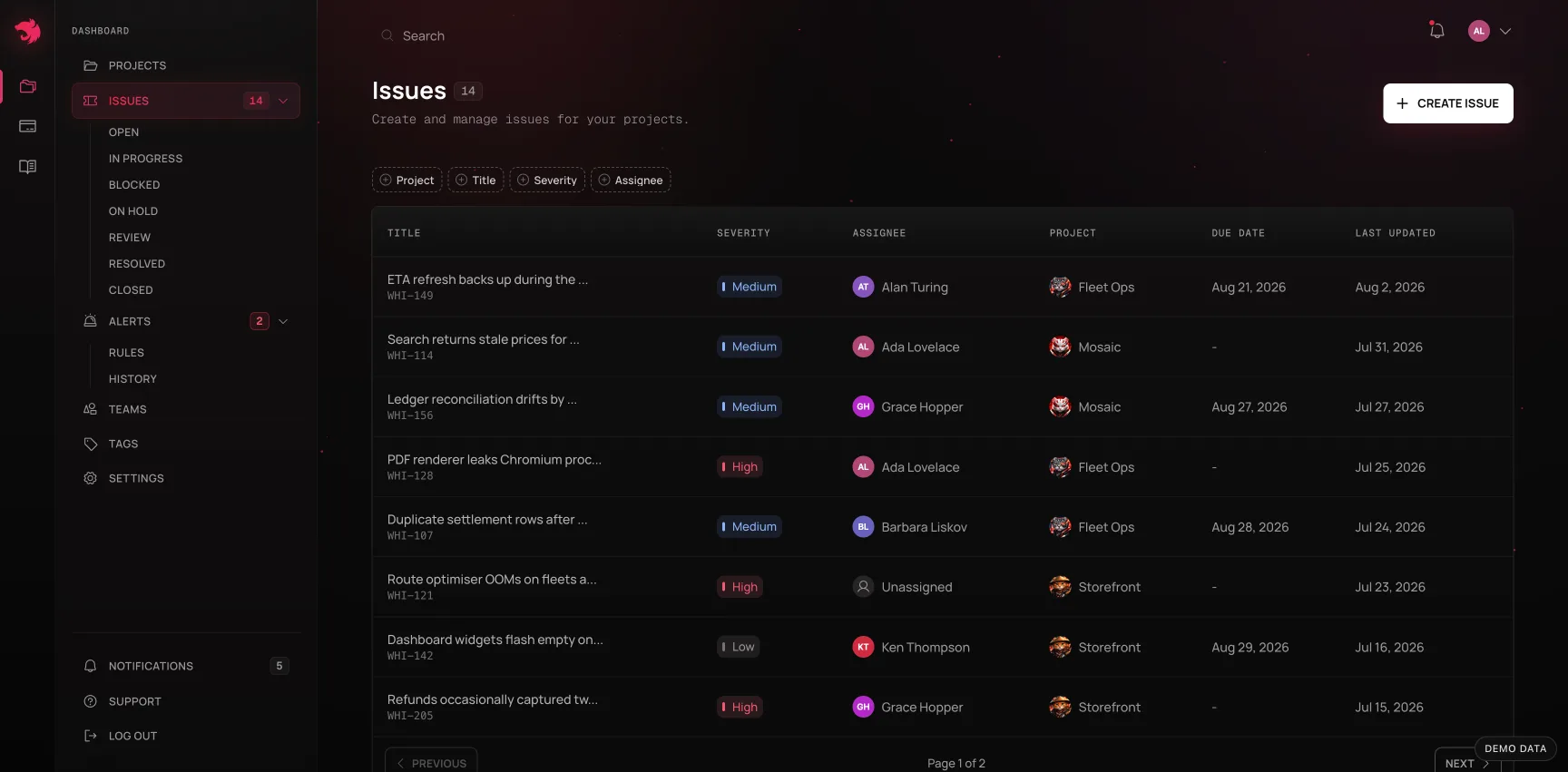
Creating an issue
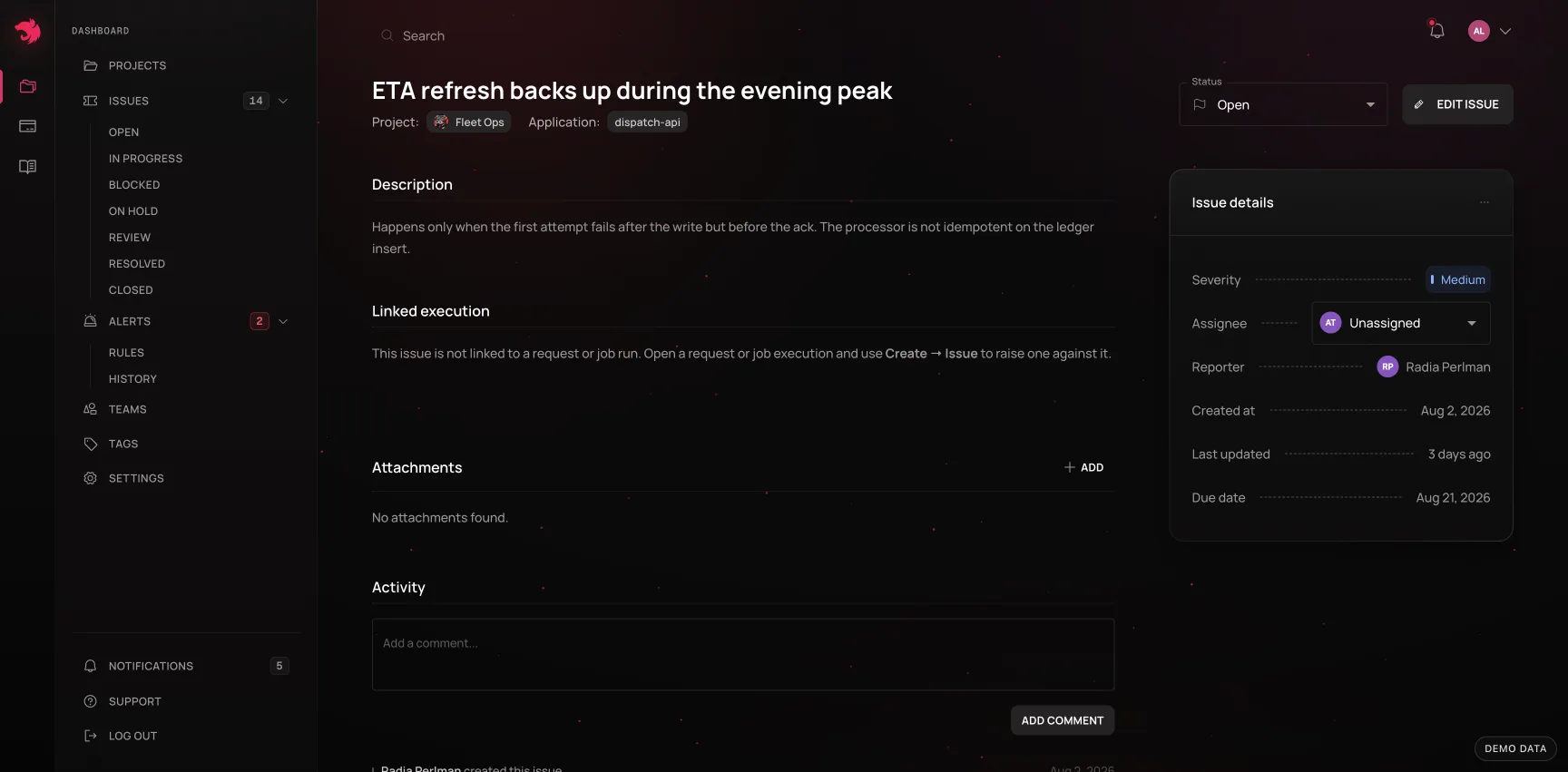
An issue has a title, description, severity (Low, Medium, High, Critical - the same scale alerts use), an assignee, and an optional due date. You can attach files and link the issue to the request, error, job, or trace it came from, so anyone opening it later has the telemetry in context, not just a description of it.
Status
An issue moves through a fixed set of statuses as work on it progresses:
| Status | Meaning |
|---|---|
| Open | Not yet started |
| In progress | Actively being worked |
| Blocked | Stopped, waiting on something else |
| On hold | Deliberately paused |
| Review | Work is done, awaiting review |
| Resolved | Fixed |
| Verifying | Fixed, and we're watching to confirm it held |
| Closed | Done, no further action |
Blocked and on hold are both mid-flight but distinct: blocked is involuntary (waiting on a dependency), on hold is a choice. Neither counts as closed, so the open-issues count and the default list view include both. Verifying is also active work, not a form of done - it sits with the in-flight statuses everywhere, including the open-issues count.
An issue's details draw its life as one bar: how long it has spent in each status, read from its activity, and how old it is.
Incident record
Every issue linked to telemetry opens with its incident record: the account of what happened, assembled from what the issue links to rather than typed up afterwards.
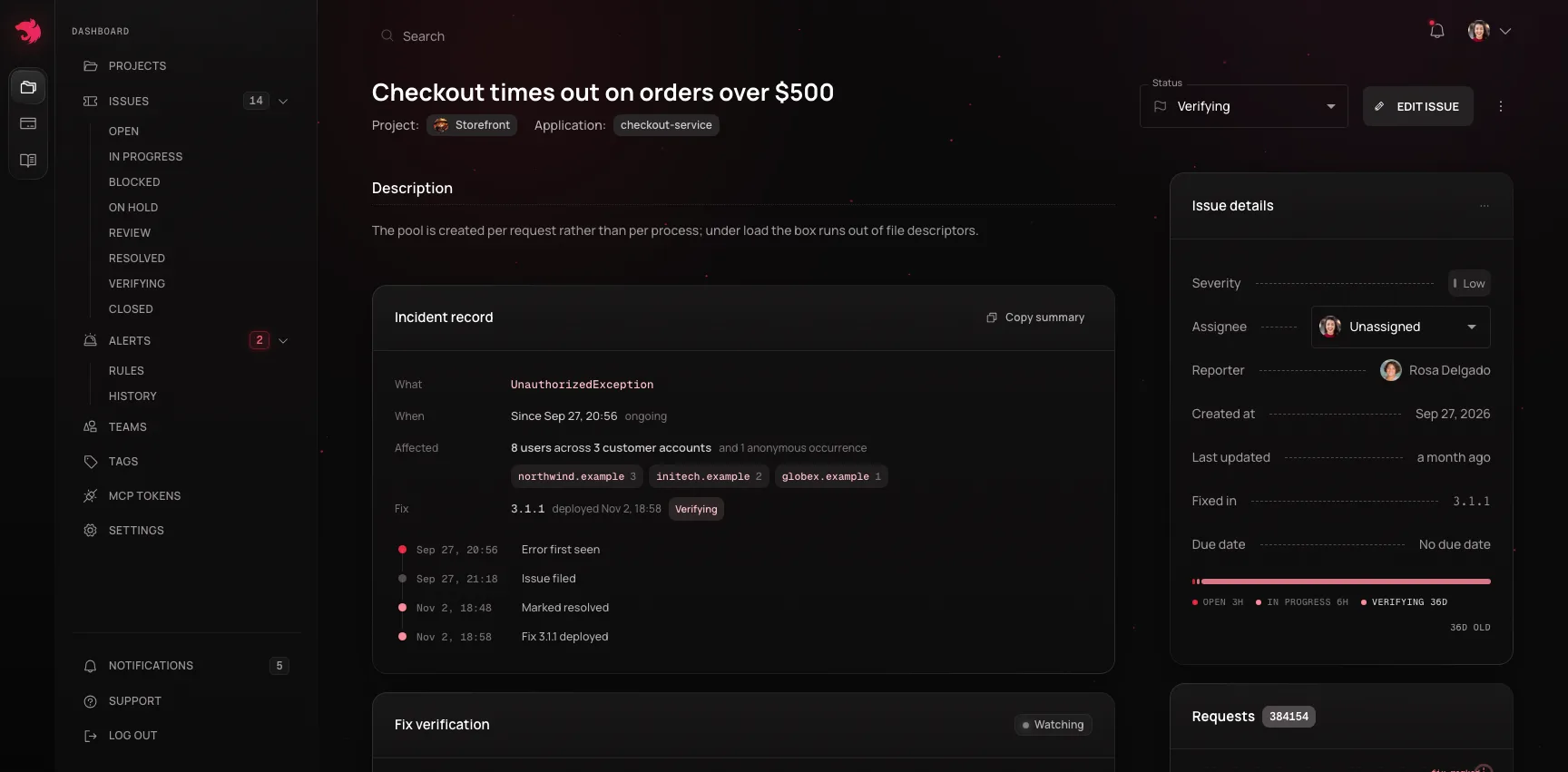
- What - the error class, route or job the issue is about, and the alert rule that raised it if one did, linked to its page.
- When - from the first sign of it to its end: the alert firing, or the error class's first sighting if that was within the week before the issue was filed, or else the execution the issue was filed from. It ends when the fix is confirmed, or when the issue is closed or resolved with nothing left to watch; until then it reads as ongoing.
- Introduced in - the release that first reported the error class. For an issue with no error class, the record names the newest release deployed in the day before it began instead - as a suspect, with that release's own verdict alongside, never as a cause.
- Affected - how many users hit it, and the customer companies behind them, grouped by their email domains the way Customers groups them. For an issue about a route rather than an error class, it counts the users whose requests to that route failed, over the incident's first day.
- Fix - the release the fix shipped in, when it deployed, and whether verification confirmed it.
Under the facts is a timeline of those moments, from the release to the confirmation. Copy summary puts the whole record on your clipboard as plain text, for the postmortem, the status update or the note to a customer that follows an incident.
Did a release fix this?
An issue promoted from an error group asks a second question under its incident record: did a release fix this? Pick a release - it opens on the one the issue names as its fix, or else the newest - and the answer is judged on that release's own requests, on the routes the error failed on, against how often it failed there before.
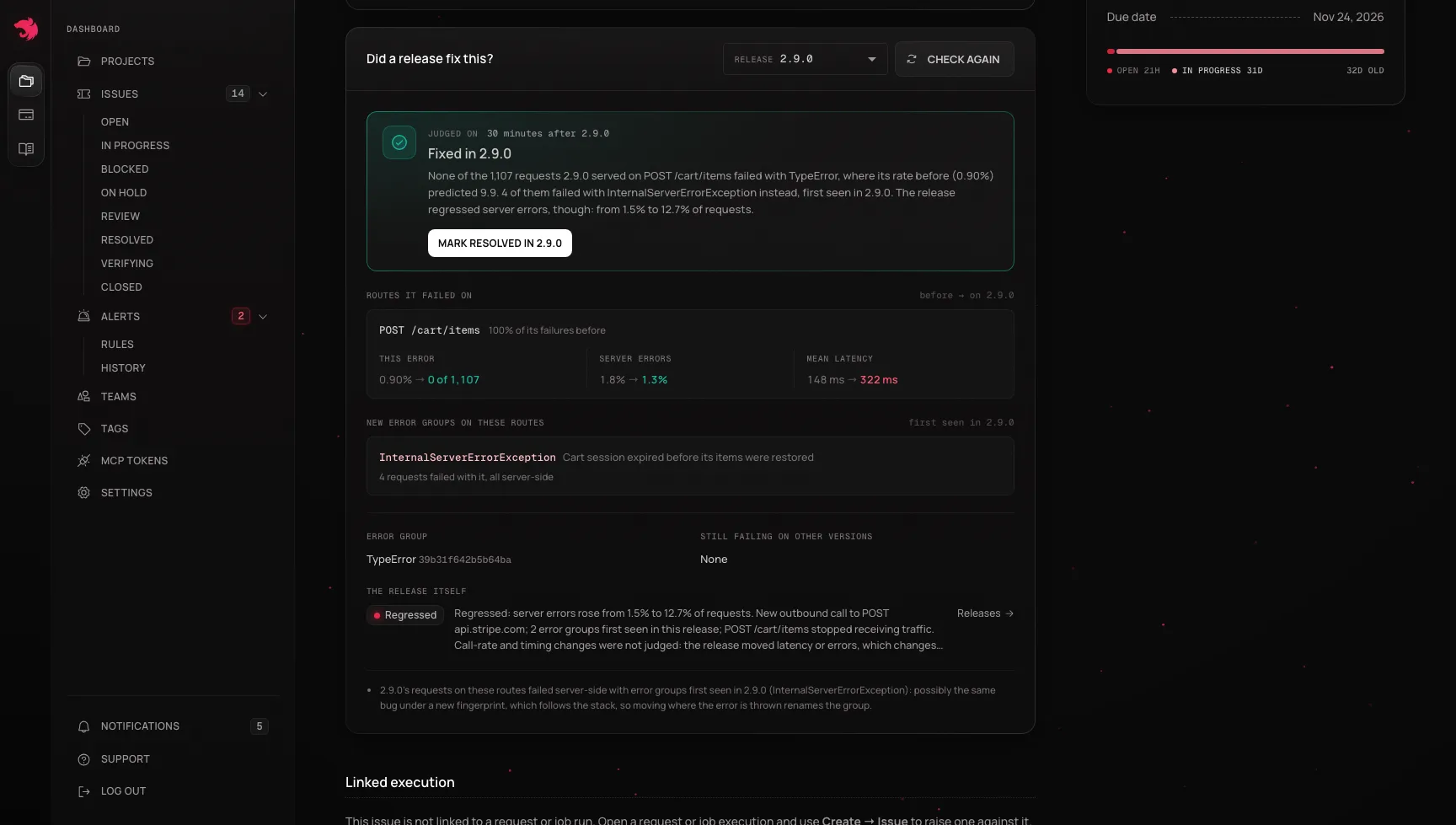
- Fixed - none of the release's requests on those routes failed with the error, where its rate before predicted at least five failures, and the error had never gone that long without failing before. Mark resolved in the release opens the resolve dialog with it filled in; nothing changes until you confirm.
- Not fixed - the release's own requests still failed with it.
- Too early to tell - too little of the release's traffic so far. The card says what it is waiting for, and Check again asks again.
- Not enough data - the error is too rare or too bursty to judge from one window, it never failed before the release, or the release served none of its routes.
While the release's first appearance is still being found, the card says so and asks again on its own.
Each route the error failed on shows three readings, before the release and on it: the error's rate, server errors, and mean latency, in green or red when they moved by more than a fifth. Under them:
- New error groups on these routes - groups first seen in the release on the same routes. A fix that only moved where the error is thrown gives it a new fingerprint, so look at these before calling it fixed.
- Still failing on other versions - versions still serving after the release, as in a rolling deploy, that still fail with it. They aren't held against the fix.
- The release itself - its own verdict. A fix can work while the release breaks something else.
The counts come from request rows, which are never sampled. An issue that wasn't promoted from an error group, or is linked to several, shows one line saying why there is nothing to check.
This answers from production straight away; fix verification, which starts when you resolve, keeps watching against the pre-incident baseline for up to 7 days. An agent asks the same question with verify_fix.
Fix verification
When you mark an issue resolved, you can optionally say which release fixes it went out in. If the issue names something measurable - an operation, an alert rule's scope - we don't just take your word for it: we watch that operation's telemetry against how it behaved before the incident, and tell you whether the fix actually held.
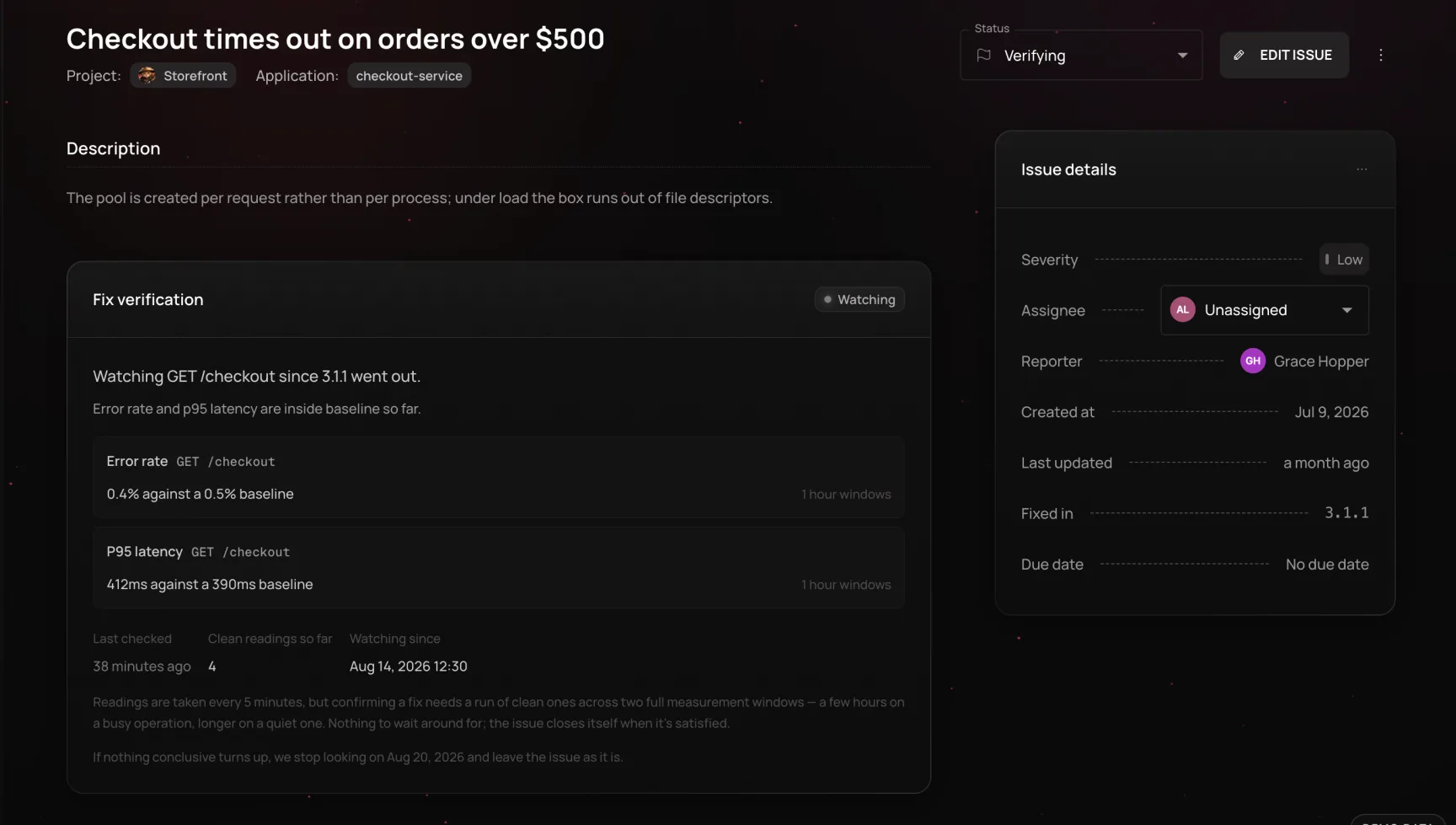
Marking as resolved. The "Fixed in version" field is optional. Naming a release holds verification until that release actually shows up in telemetry - useful when you're resolving the issue before deploying the fix. Leaving it blank starts watching immediately, against whatever's live right now.
If there's something to watch, the issue moves to Verifying instead of Resolved - reflecting what actually happened, not what you asked for. From there it resolves itself one of three ways:
- Confirmed - readings have stayed inside the pre-incident baseline for long enough. The issue closes on its own.
- Reopened - a reading moved outside baseline again. The issue goes back to Open, with the reading that broke it recorded in the timeline.
- Unverified - after 7 days, nothing conclusive turned up (usually too little traffic on the operation to judge either way). This is neither a pass nor a failure - just an honest "we couldn't tell." Close the issue by hand if you're satisfied the fix is good.
A confirmation needs both a run of consecutive clean readings and two full evaluation windows of elapsed time to have passed - so on a busy endpoint this typically takes a few hours, and longer on a quiet one. Readings are taken every 5 minutes. A single inconclusive reading (too little traffic in that window) isn't treated as bad news or as progress - it's a pause, not a signal either way.
Not every issue can be verified. If the issue doesn't name an operation or alert rule, or the metric it's tied to has no baseline to compare against (a heartbeat, a log match), or there isn't enough pre-incident history to judge against, resolving it leaves a quiet note instead of starting a watch - the issue stays Resolved, and you close it by hand when you're ready.
Activity and comments
Every issue has an activity feed recording status changes, assignment changes, and comments from anyone with access to the project - a running history of how the issue was worked, not just its current state.
Linking from an alert
When an alert rule's channel is set to "Create issue," a firing rule opens an issue automatically, pre-filled with the rule's severity and a link back to the metric and scope it was watching - so the person who picks it up starts from the same context the alert had.